Several Outlook users, on different forums, have reported encountering the error “OST file cannot be opened,” when trying to open the application or sending/receiving emails. This error mainly happens when Outlook is unable read the OST file that stores a local copy of your mailbox. There are several internal and external reasons that can cause such an issue. In this article, we will highlight the possible causes behind this Outlook data file error and explain the troubleshooting methods to fix it.
Common Causes for OST File cannot be Opened Error
This error might be the result of one or more of the following internal and external reasons:
- OST File Corruption
- Outlook Profile Misconfiguration
- Outdated Outlook Version
- Synchronization Errors with Mailbox Server
- File Permission Problems
- Large OST File Size
- Third-Party Add-ins or Antivirus Interference
Solutions to Fix the OST File cannot be Opened Error in Outlook
Below are some simple yet effective fixes to resolve the OST file cannot be opened error.
1. Check OST File and Folder Permissions
Outlook needs proper file permissions and correct attributes, to access and read the OST file. If these are incorrect, then it may not able to access the file and shows the “OST file cannot be opened” error. You can check the folder permissions and file attributes to resolve this Outlook error. Let’s see how to do so.
To check permissions to access the OST folder, follow these steps:
- Go to the folder where your OST file is stored.
Note: If you don’t know the location, right-click on your account name in Outlook and select Open File Location.
- Right-click the folder.
- Choose Properties.
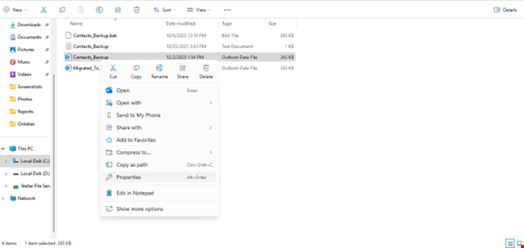
- Go to the Security tab. Check if all the required permissions are assigned.
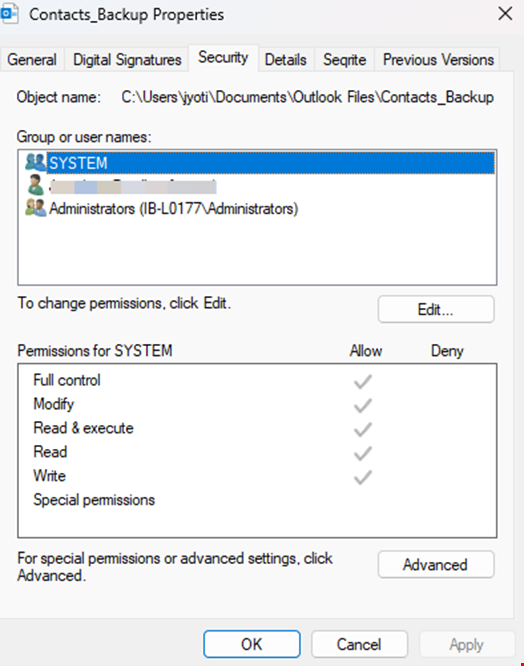
- If any permission is not assigned, then click Edit.
- Select your user account. Assign the required permissions.
- Click Apply > OK.
Now, open your Outlook application and check if you’re able to access the OST file.
If the error still persists, then there is a chance that OST file is marked as "Read-only", which is preventing Outlook to open it. To check this,
- Go to the location of your OST file and right-click on it.
- Click on Properties.
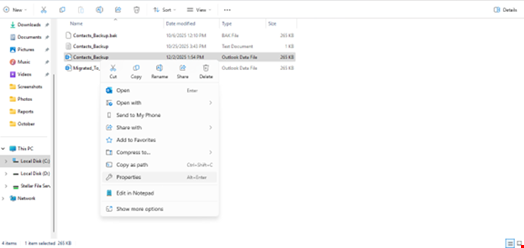
- In the Properties window, under General tab, check if Read-only attribute is marked.
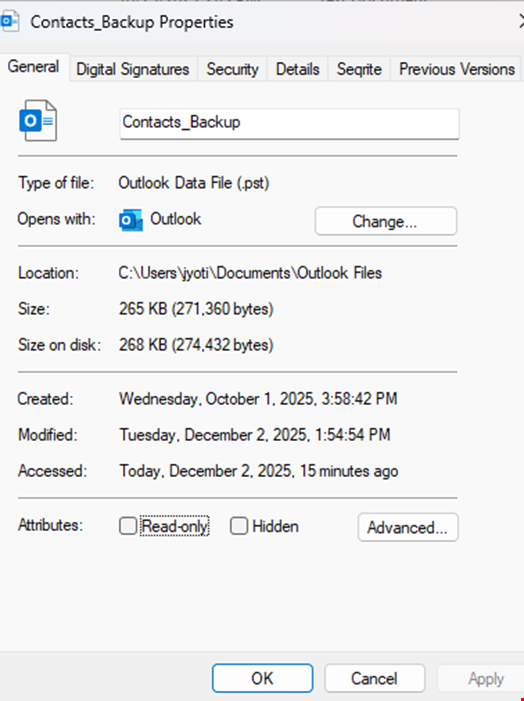
- If yes, unmark it and click Apply > OK.
2. Disable Problematic Add-ins
Third-party add-ins in your Outlook, if not compatible, can cause random issues or errors. You can verify if this Outlook data file error is caused by any such add-in. For this, launch Outlook in Safe Mode by pressing Windows + R keys, typing outlook.exe /safe in the field given field, and clicking OK.
If Outlook opens without any error in Safe Mode, it is obvious that any add-in was causing the error. Now, you have to simply disable the add-ins to resolve the issue. To do so,
- Click File in the top-left corner.
- Select Options.
- In the left panel, click Add-ins.
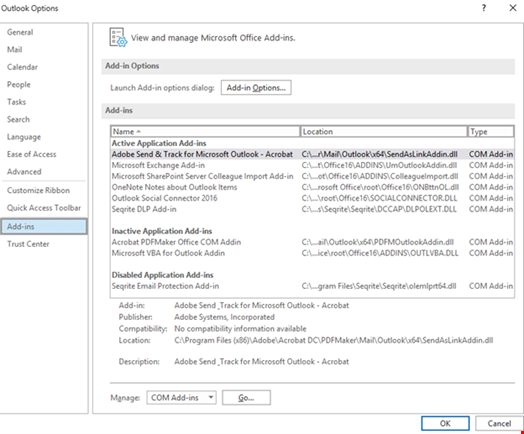
- At the bottom of the window, find Manage.
- From the dropdown, select COM Add-ins.
- Click Go. A list of all the installed Outlook add-ins will appear.
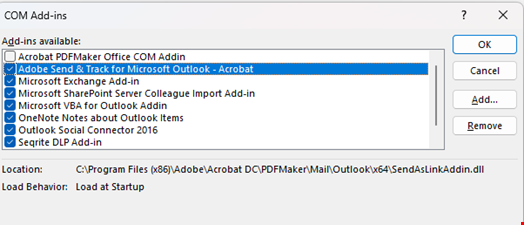
- Uncheck all add-ins to disable them. Click OK.
- Close Outlook completely and then open it normally.
To identify the exact add-in which was causing the issue,
- Enable an add-in at a time.
- Restart Outlook.
- Repeat until the error occurs.
- The add-in you enabled last will be the faulty one.
- Remove the add-in permanently.
3. Reduce OST File Size
An oversized OST file can lead to sync or other issues, which may trigger the “OST file cannot be opened” error. By reducing the size of OST file and keeping it smaller can assist you in resolving the error and enhance performance of Outlook. Below are some ways to reduce your OST file size:
- Use Outlook’s Mailbox Cleanup Tool
- Delete Unnecessary Emails and Attachments
- Archive Old Emails
- Empty Deleted Items and Junk Folders
- Compact the OST File
- Adjust the Sync Slider Settings
4. Update Outlook
Outdated Outlook application may develop bugs or glitches, which might interfere with normal operations, preventing it from reading the OST file. By updating your Outlook to the latest available updates can assist in fixing any bugs or glitches. Follow the steps given below to update Outlook:
- Open your Outlook application as administrator.
- Go to the File tab and select Office Account.
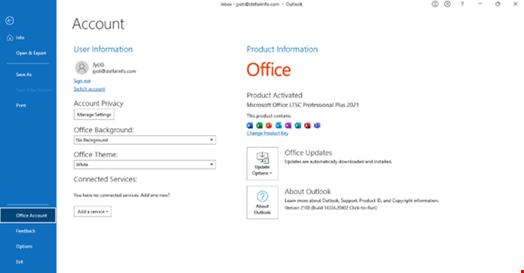
- Click Update Options.
- Choose Update Now.
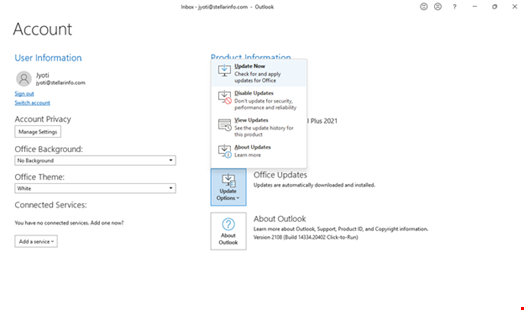
- Wait for the updates to complete.
- Restart Outlook.
5. Create New Outlook Profile
If your Outlook profile is damaged or corrupted, then this might be one of the reasons for the OST file cannot be opened error. In this scenario, you can create a new Outlook profile and replace it with old corrupted one. This will assist in resolving the error. Follow these instructions for creating a new profile in Outlook:
Note: Make sure Outlook is closed before proceeding.
- Open Control Panel on your system.
- Click on Mail.
- In the Mail Setup window, click Show Profiles.
- Click Add.
- Enter a name for your new profile (e.g., “Outlook-New”). Click OK.
- You will be asked to enter your account details such as:
- Your Name
- Email Address
- Password
- Follow the instructions to complete the process.
- Start Microsoft Outlook and select Always use this profile option.
- Choose your newly created profile from the dropdown.
- Click Apply > OK.
6. Recreate the OST File
Problems or inconsistencies in the OST file is also one of the major reasons for OST file cannot be opened error. An easy way in this situation is to recreate the OST file. Here’s how you can safely recreate the OST file in Outlook:
- Close your Outlook application.
- Open the OST File Location.
- Find and rename the OST file to create its backup.
- Restart Outlook.
This will create a new OST file with all the mailbox items downloaded from the server. However, you may not find the items which were not synchronized from OST file to the server. But you can recover these items from the old (backup) file. As this file is now in orphaned state, you need to use an advanced OST to PST converter tool, like Stellar Converter for OST. This tool will assist you in easily opening the old OST file (orphaned) and searching for the missing items. When found, you can then save the items in a PST file and import it into your Outlook.
Conclusion
OST file cannot be opened is a typical error that may occur due to varied reasons, as explained in this article. Whatever the reason for this Outlook error, you can resolve it by following the solutions mentioned above. In case inconsistencies or any damage in the OST file might have caused the error, then you can simply recreate the file after creating its backup. If you found any missing mail items in new OST, then you can use the OST to PST converter software - Stellar Converter for OST to extract the items from backup OST file. The software converts the OST file items into PST format, which can be easily imported into your Outlook account.