Master database file or MDF file is a primary database file that contains fields, tables, indexes, stored procedures and other data in SQL Server. Like other data files, this file is also susceptible to corruption. It can easily get corrupted due to various internal and external factors, such as disk errors where the database file is stored, sudden system shutdown or crash, abrupt SQL Server instance closing or crash, etc.
If your MDF file becomes corrupted, its header becomes unreadable as well. Due to this, you may face certain errors, like 9001, 9002, 5171, 5172, etc. If you’re unable to access MDF file, it is not a major cause of concern, as you can easily repair or restore it. This post explains how to repair the MDF file using the native repair methods. But what if the native methods fail to repair the database file? We will also provide Reliable MDF file Repair tool as an alternative to native methods.
Methods to Recover Corrupt MDF File in SQL Server
To repair and restore corrupt MDF file, you can follow the methods mentioned below.
Method 1 - Restore from Backup
A tested, planned, and well-defined backup and restore strategy in SQL Server helps you easily restore database in case of corruption or any other issue. To confirm whether the backup is reliable and ready to use, you can use the RESTORE VERIFYONLY command. Then, restore the backup file by following the steps given below:
- In SSMS, first connect to your Microsoft SQL Server instance.
- Under Object Explorer, click on Server name to expand the server tree.
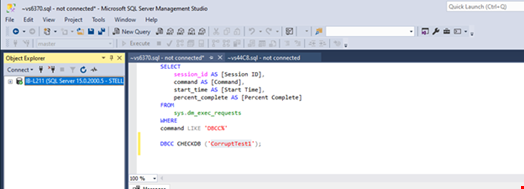
- Now, expand Databases under server name, right-click on the database, click Tasks, and then Restore.
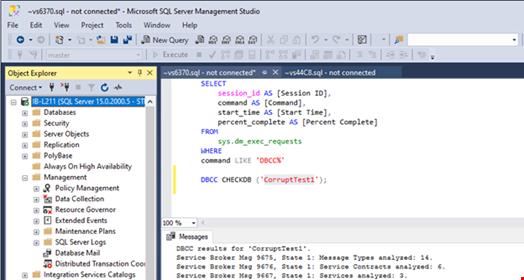
- In the Restore dialog box, on the General window, under the Restore source option, click Device to specify it as a source and browse to the location of the backup sets to restore.
- Click on the three dots. In Select backup devices, select the backup media type, i.e., URL or backup file name. Click Add and then OK.
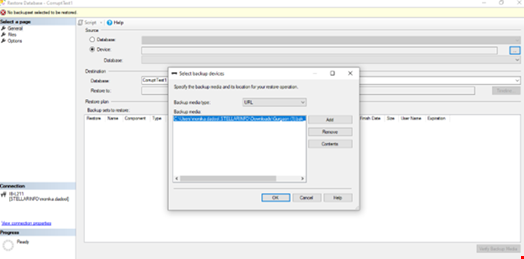
- You will return to the General page. Under source, select the database name. The same database name will automatically be populated in the destination section.
- Next, in the Restore to window, select Timeline, if you want to add a point-in-time to stop the recovery action manually. Else, leave the default settings - "To the last backup taken."
- Then, the "Backup sets to restore" grid will appear. Select the backup you want to restore.
- Now, click on Files page. In the Restore database files as window, you will see the logical file names from the backup. Check the paths and change them if required. Click OK.
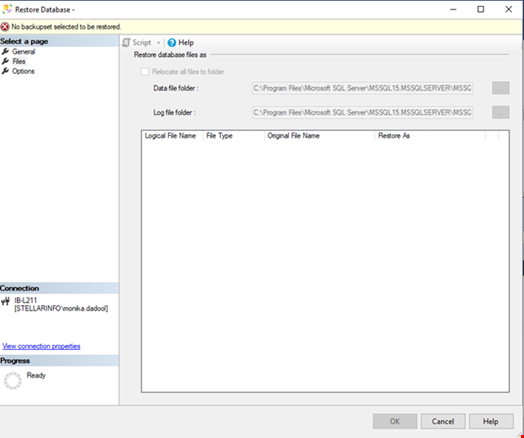
- You can even add advanced restore options. Once you’re done with the required settings, click OK to restore the backup file.
If you want to avoid these lengthy steps, then run the simple query, as given below, to restore the SQL database from backup:
RESTORE DATABASE AdventureWorks32022
FROM DISK = 'Z:\SQLServerBackups\AdventureWorks32022.bak' ;
WITH MOVE 'AdventureWorks_Data' TO 'C:\SQLData\AdventureWorks32022.mdf',
MOVE 'AdventureWorks_Log' TO 'C:\SQLLogs\AdventureWorks32022.ldf',
REPLACE;
To open or view MDF file after restoring the backup, you need to attach the recovered MDF file to the SQL Server instance.
Challenges while Restoring MDF File from Backup:
- Restoring an MDF file in SQL Server requires a complete backup with a readable log file.
- The backup restore process can fail if the Logical file paths mismatch.
- The restore process can fail if the backup file is corrupted. And there is no fix available in SQL Server to repair backup file.
Method 2 - Use the DBCC CHECKDB Command
If the backup file is corrupted or you encounter restore failed errors while restoring the backup file, then use the DBCC CHECKDB command. It helps you check and repair the MDF file along with its header, pages, and other objects. To use it, first create a backup of the corrupt MDF file and ensure the following:
- You have the database-level permissions.
- Your database should be in SINGLE_USER mode.
- If the MDF file you're trying to repair is not readable, then use the database in EMERGENCY mode for read-only access.
Next, run the DBCC CHECKDB command with the REPAIR_ALLOW_DATA_LOSS option as given below:
DBCC CHECKDB (‘TESTDB781’ , REPAIR_ALLOW_DATA_LOSS) WITH ALL_ERRORMSGS, NO_INFOMSGS;
GO
Note: It can help you resolve complex corruption-related issues in your MDF file, but you can use this option as a last resort, as it leads to data loss.
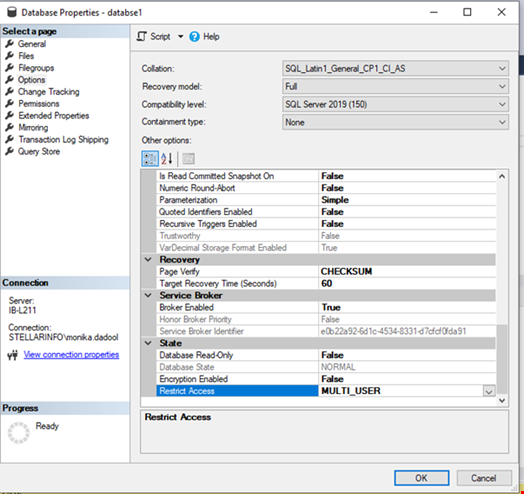
After the MDF file gets repaired, change its mode to MULTI-USER. To do so:
- In your SSMS, right-click on the database and click Properties.
- Under Database properties, click Options, then scroll down to Restrict Access under Other options. Then, select the MULTI-USER mode. Click OK.
Challenges with DBCC CHECKDB Command:
- The command may deallocate data while repairing MDF file pages, leading to data loss.
- You may require to set the database to a single-user mode, which can disrupt the normal operations.
- It can take time to execute, especially if you're trying to repair large-sized database with complex relationships or your system's hard-disk is out-of-space.
- Does not help to restore deleted objects from MDF file.
How to Recover Corrupt MDF File without SQL Server?
In certain situations, such as if the backup file is not available or is corrupted, or you're not able to connect to the SQL Server instance, you may need to repair the corrupt MDF file without SQL Server. To do so, you can use a professional MDF file repair tool.
Tools like Stellar Repair for MS SQL are time-saving tools for repairing MDF files. It can repair severely corrupted MDF and NDF files of any size, without data loss. Also, it allows you to recover deleted objects from the database file. To understand how this MDF file repair tool works to repair MDF file, you can watch this video:
https://www.youtube.com/watch?v=kIlB9_Wb5T4
Highlighting Features of Stellar Repair for MS SQL:
- Repairs NDF/MDF files created in any SQL Server version.
- Allows you to recover deleted objects from a corrupt MDF/NDF file.
- Provides an option to select the database collation of severely corrupted or damaged database file.
- Allows you to save the repaired database in a wide range of file formats, like CSV, HTML, XLS, and to a new database or live database.
- Provides an option to preview the repaired database before saving.
Conclusion
This post outlines a complete tutorial on how to repair the MDF file using SQL Server. You can recover the database file from backup. In case you don't have a backup, you can use the DBCC CHECKDB utility to repair the SQL database files. This native method isn’t always successful in repairing the damaged database files and has some limitations. If it fails to perform the intended task, you can use a reliable third-party SQL database repair tool, such as Stellar Repair for MS SQL, to repair the database file. It recovers all the objects from the database file without compromising the integrity.